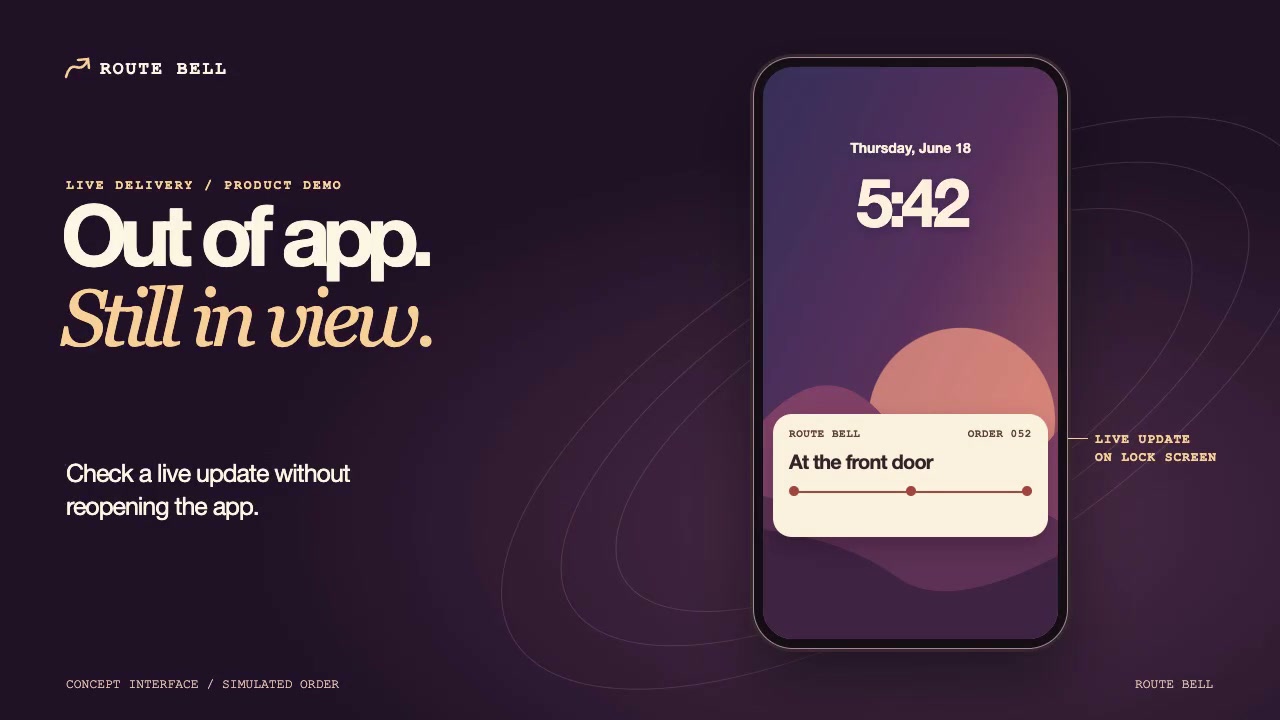
Storyboard a live status handoff from app to lock screen
To storyboard a live status handoff, show the same test order in the app and on the lock screen before you show any status change. Then hold the lock screen for one update so viewers can tell what changed without narration.
Sketch the three frames
Use app and lock-screen captures you have permission to show. Use a test order with no customer details. The labels below are a fictional example.
- In the app, show Order 204 with the status Preparing. Leave enough room for both labels to be read at phone size.
- Cut to the lock screen and hold on Order 204, still Preparing. If you have no frame with the old status on the lock screen, capture one before moving on.
- Keep the lock-screen crop and order number fixed. Show the status changing once, from Preparing to Out for delivery. If a progress indicator also changes, it should reflect that same update. Hold long enough to read the new status.
Check the handoff with the sound off
At the intended viewing size, ask someone to read the order number in all three frames and say when the status changed. The status should change between the two lock-screen frames, not during the cut from the app. If they miss the number, adjust the crop. If they think the cut changed the status, hold the first lock-screen frame longer.
The Live Status Handoff sample page marks the screen transition at 3.3 to 4.8 seconds and the update at about 7 to 8 seconds. Compare your final frame with its 7.91-second reference still. Use those times to find the sample beats, not to time your cut. You do not need the Premium Skill to use this checklist.