Product demo video guides
Choose a product demo video guide based on what you need to show: a software feature, an automation’s first run, or a physical product unfolding.
Already have a software screen recording?
Use the software brief to check the starting screen, one feature operation and its visible result. Record the exact controls used, including any intermediate steps, so a reviewer can compare the same item before and after.
Software demo video template: a production brief
This is a copyable text brief with an illustrative example and recording checks. It does not generate a video or include an editing project.
Moving in on a phone app tap?
Set where the push-in ends so viewers can see what was tapped and which item the confirmation belongs to.
Film a phone app demo: keep the tap and confirmation readable
Showing an order update on the lock screen?
Keep the order recognizable through the cut, then show one status update.
Recording an automation for the first time?
Plan three shots around one test input, its trigger and the result you can verify in the run log.
Showing the same request in more than one interface?
Use the same sample input in each interface you support. Put the captures side by side and hold the returned value long enough to compare it across panels. If the values differ, show the difference instead of calling them a match.
See the 6.2-second comparison frame on the Cross-Surface Command page. The frame’s description identifies the same sharing route in a browser, a chat window and a terminal. Use it as a layout reference, not as proof that your product supports those interfaces.
Showing a waveform selection and playback?
- Show the waveform before selection. Keep it in the same position as the state changes.
- Show both handles when you mark the range, so viewers can see where it starts and ends.
- Keep the handles visible as the playhead moves through the selection. Pause your storyboard at this beat: can a reviewer tell what is playing without reading the caption?
Compare your last frame with the 7.8-second still on the Halftone Field Reveal page. The page captions it as a playback line crossing the bracketed waveform without clearing the dot field. You can use this storyboard check without obtaining the Premium Skill.
Showing what one code change did?
Match the before and after captures and show the exact line that changed.
Showing visual search results next to a selected object?
Sketch three frames that keep the same circled object visible when matching results appear.
Need to show a foldable physical product?
Use the hardware brief to plan three shots: closed, opening and open. Keep the camera and base fixed, leave room for the moving panel and hold the final view so viewers can see the extra surface.
Plan a foldable hardware demo: a three-shot brief
The guide links to the Hinge Open Reveal animated reference. Use it to compare the hinge position and opening movement; it is not footage of your hardware.
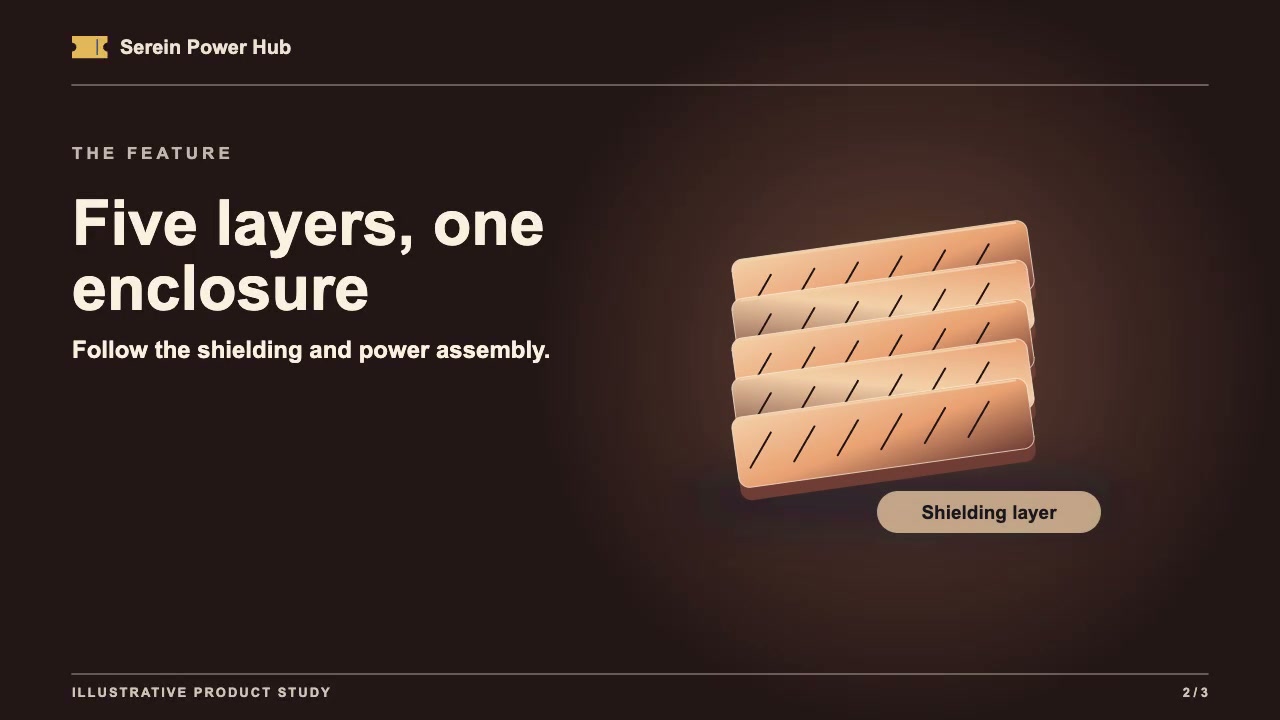
Storyboard an exploded assembly around one part
Pick the internal part the demo needs to explain. Sketch the finished product, a separated view, and the finished product again. In the separated view, keep the layers on one assembly axis and leave enough space to see the chosen part’s outline.
- Mark where the part sits inside the enclosure on your first sketch. This mark is for the production team and does not need to appear in the video.
- Show the middle sketch at the intended viewing size. With the labels covered, ask someone to point to the part you’re featuring. If they point to a neighboring layer, increase the gap before adding a label.
- Compare the final sketch with the first. Keep the enclosure in the same place so the viewer can relate the separated part to the finished product.
Use the 7.64-second still from Inner Stack Reveal as a reference for the middle sketch. The sample page identifies the shielding and power assembly in that frame. The still is a reference for spacing, not a test of the full animation. You can do this storyboard check without obtaining the Premium Skill.
Showing the ribs on a stationary casing?
Sketch the outline and highlight, then check that a viewer can pick out both the ribs and the casing edge.
Planning a cut-paper unboxing?
Sketch what comes out of the package and where the result appears.
Already cut your launch video?
Plan the brush reveal and hold one closing line long enough to read.
Cropping a screen recording for vertical video?
Keep one control and its result readable in the same 9:16 crop.
Keep a handwritten launch title readable
- Put the product name on one side of your opening frame and draw the path of the handwritten mark beside it.
- Sketch the mark halfway through its path. At the size viewers will watch, check that the mark does not cross the title and that you can read the name without pausing.
- Keep the title in the same place in the last frame. Hold that frame long enough for someone seeing it for the first time to read the name aloud.
Compare your middle frame with the 6.72-second still on the Handwritten Paper Launch page. Its caption notes that the blue mark reaches the center while the title stays fixed on the left. You do not need the Premium Skill to do this storyboard check.
Planning a reveal for one feature?
See which shot sets up the problem and how to check whether the last shot shows the result.
Does your mascot introduce a phone feature?
Sketch the moment the mascot steps aside so viewers notice one row on the phone.
Showing a route between fixed stops?
Use a single moving marker and check whether viewers can tell which stop it just left.
Showing what stays after a note is reopened?
Plan the edit, the return to the notes list, and the shot that shows the new line in the same note.
Showing where a product link leads?
Plan the offer, the checkout preview and a final frame that lets viewers compare both.
Showing the same product name in different finishes?
Keep the name and swatches in place while the texture inside the letters changes.
Moving the camera across UI panels?
Use three screenshots to check the camera spacing at both panel boundaries before you animate.
Showing a reply beside its source?
Keep the triggering row visible when the side panel opens.
Showing the transcript behind an action item?
Use one timestamp to help a reviewer check who owns the action and when it is due.
Revealing artwork inside a device screen?
Check where the sweep meets the screen border before you animate.
Showing a notification in smart glasses?
Keep one landmark in view as the notification appears.
Showing audio moving between two devices?
Sketch where the signal starts and how the receiver meter shows it arrived.