Product Demo Video Example: Dayfold
- Warm paper
- Fixed workspace
- Gold task card
- Visible confirmation
What is a product demo video?
A software product demo video shows how a product works by showing an action and its visible result. It helps viewers understand what they can do with the product.
This 16-second example uses the fictional app Dayfold to show one task moving from the inbox to today's schedule.
Product demo video shot list
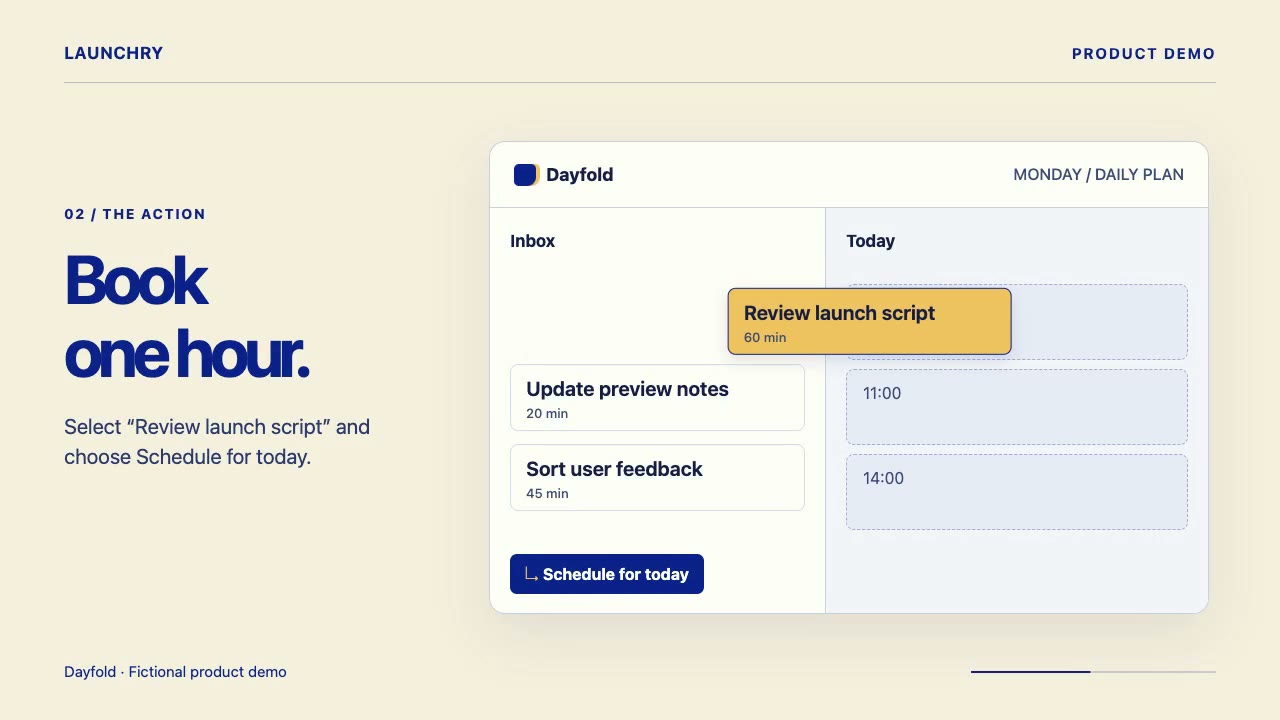
In this 16-second demo for the fictional app Dayfold, one task moves from the inbox to today’s schedule.
- “Review launch script” is in the inbox and the calendar slot is empty.
- Pick the task and choose “Schedule for today.” Keep the inbox and calendar in the frame so the viewer can follow the move.
- The calendar shows “Review launch script” at 09:30–10:30. The other two tasks stay in the inbox.
Brief to reuse. Show [the viewer] how [one action] takes [the starting screen] to [the visible result]. Keep [the evidence that must stay in frame] on screen.
Use your app’s real control label, starting screen and confirmed result. Attach a screen recording or a frame for each shot. Check that the outcome is readable with the sound off.
Product demo video script example
This suggested script follows the 16-second demo for the fictional app Dayfold. Use it as a starting point for captions or voiceover; it is not a transcript of the preview.
- 0:00, starting screen: “This task is still in the inbox.”
- 0:05, action: “Choose Schedule for today.”
- 0:11, result: “It is now on the calendar at 9:30. The other two tasks stay in the inbox.”
Replace the task, control label and result with what your own product shows. Preview your captions or record a test read to check the timing.
Demo recording checklist
Before recording your product demo, prepare a repeatable starting state and a small set of source files.
- Use a demo account with sample data you are allowed to publish. Remove personal details and turn off notifications.
- Save the starting state and write down how to reset it before another take.
- Fix the window size, browser zoom and crop. Check that the control and its result fit in the same view.
- Make a test recording. Replay it with the sound off and check that the control label and confirmed result are readable.
- Keep the original recording. If you supply still frames instead, name them before, action and after, and use the same crop.
Hand off the source files with your brief, the exact control label, the reset steps and the intended output format.
Compare your capture with the Dayfold shot list.
Need a different frame for your product demo? Compare the 12-second 16:9 app launch storyboard for a desktop interface with the 12-second 9:16 product update example for a phone-first feature. Choose the frame before recording so the control label and result stay readable.